Skip to content
TinyKPI

SALES · REFUNDS · SUBSCRIPTIONS

A revenue dashboard.
For your daily check-in.

See how payments are coming in. Keep revenue, sales, and refunds close in a desktop dashboard built around your notch.

Explore the examples

Connect your billing tools. Choose your cards. Pay once.

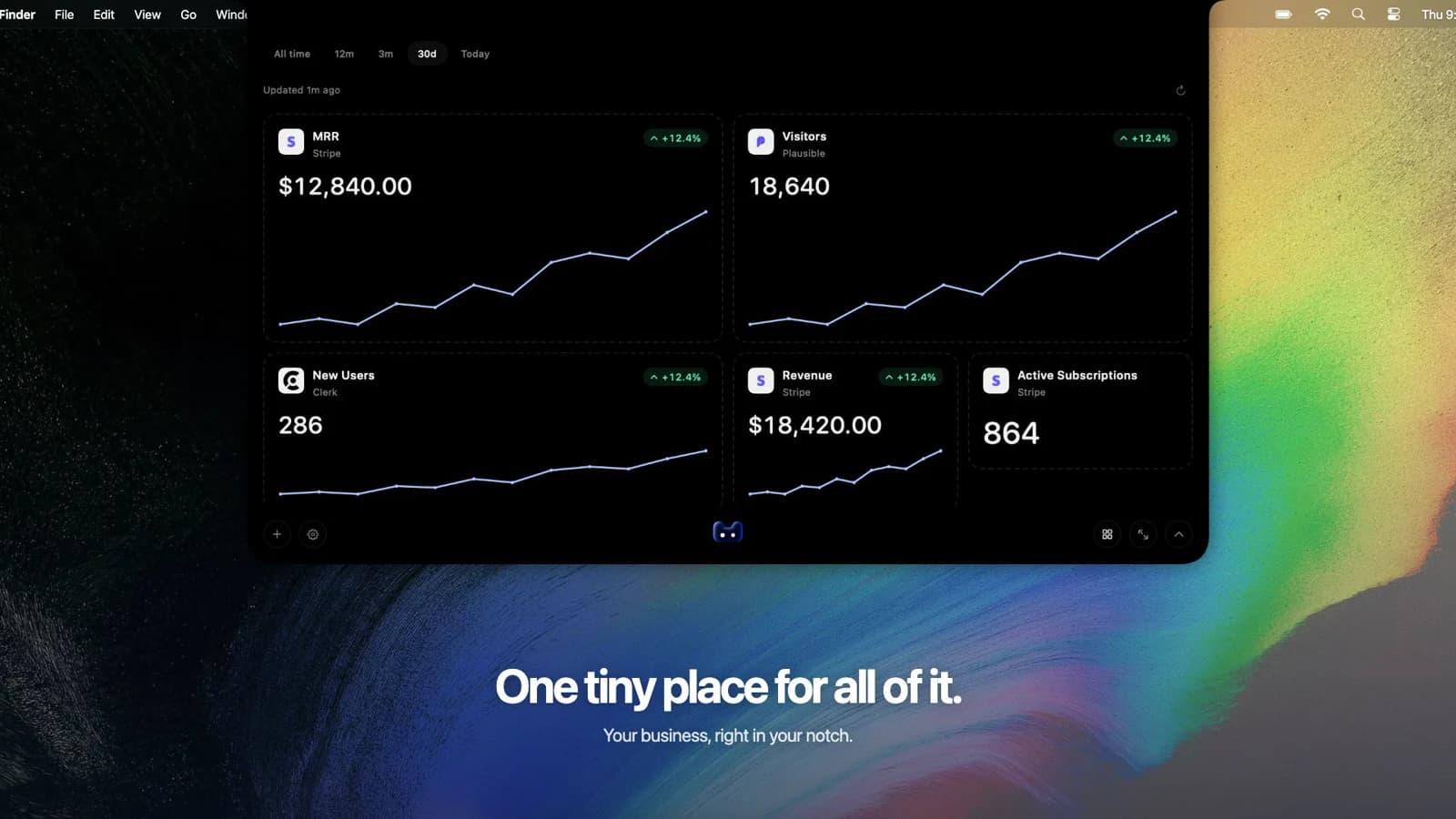
Expanded desktop dashboard preview with revenue, recurring revenue, and subscription cards
Expanded dashboard · Product preview with example data

THE TEMPLATE GALLERY

Revenue dashboard templates.

Three ways to keep an eye on your revenue. Pick the view that fits your business and make it yours in the app.

Build these layouts with your connected data. Check supported cards in the integration table below.

KNOW WHAT YOU’RE LOOKING AT

Useful numbers.
Clear meaning.

A useful revenue report starts with knowing what each card counts. Keep these distinctions in view when choosing your layout.

Explore the MRR dashboard
Revenue
Payment or order value in the selected period, according to your source. Tax and discount treatment varies; it is not a profit figure.
Sales
A count of qualifying paid transactions or orders. Use it beside revenue to understand payment volume.
Refunds
Refund amounts tracked separately from revenue. Some sources only provide an all-time total when refund dates are unavailable.
MRR
The monthly value of recurring subscriptions. An annual payment and its monthly recurring value answer different questions.

CHECK YOUR CONNECTION

See what your
revenue source supports.

Choose a source that fits your business. Card availability is listed below; history and calculation rules still depend on the integration.

Available revenue dashboard cards
MetricStripePolarPaddleLemon Squeezy
Revenue
Sales
Refunds
MRR
Active subscriptions
New subscriptions
Churn rate
Checkout conversion

Availability means the card can be added. Date ranges, historical coverage, and currency handling vary by source. Explore all connections ↗

A SMALLER DAILY ROUTINE

Connect once.
Check in as you work.

Keep key metrics in the compact notch, and open the dashboard for a closer look. Create separate projects for separate businesses.

Watch the app in action
  1. Install and connect

    Download the desktop app, activate your license, and add a supported revenue source to your project.

  2. Build your daily view

    Add revenue, sales, and refunds. Include subscription cards when they matter to your business. Drag and resize cards to fit your workflow.

  3. Read the numbers in context

    Check your reporting period, currency, and refresh status. Metrics refresh about every five minutes while the app is running.

FROM DESKTOP TO DASHBOARD

Your business, a glance away.

Big picture. Tiny space.0:34 · Sound on
PRICING

Big picture.
Small price.

A calmer way to keep up with your business.
Pay once. No subscription.

MacmacOS 14 or later
Launch price
$29regular price

USD · One-time purchase

Secure checkout · App download + license · One Mac

Already purchased? Get your app & license ↗
5 days, 3 hours, 43 minutes

REVENUE DASHBOARD QUESTIONS

Before you get started.

What is a revenue dashboard?

A revenue dashboard brings your sales and revenue metrics into a visual view. It helps you check payment activity, follow trends, and understand the numbers behind your business. This desktop app lets you choose revenue, sales, refund, and subscription cards from supported connections.

How is this different from an MRR dashboard?

A revenue dashboard covers payment activity, including one-time purchases and subscription payments. An MRR dashboard focuses on the monthly value of recurring subscriptions. You can put both kinds of cards in the same project, while keeping the metrics separate.

Can I use these revenue dashboard examples as templates?

The examples show card combinations you can build in the desktop app. Connect your source, add the available cards, and arrange them to match the layout you want. The previews use example data; they are not downloadable spreadsheet templates.

Does revenue mean profit or money paid out to my bank?

The revenue card follows the connected source’s payment or order definition. It does not represent profit or bank payouts. Taxes, discounts, fees, and refund treatment can differ by source. Check the metric’s description in the app before comparing it with an accounting report.

How fresh are the numbers?

The app refreshes about every five minutes while it is running. Check the refresh status when reviewing a change. If a refresh fails, previously saved metrics remain visible.

Can I monitor multiple businesses?

Yes. Each project has its own connections, cards, and saved layout. Switch projects to check each business separately. Individual source cards retain their own metric definitions and currency context.

Where does my business data go?

The app connects directly to your providers. Your credentials and saved metrics stay on your computer, so you can keep a local view of the business alongside your work.

Revenue Dashboard Templates & Examples for Your Desktop